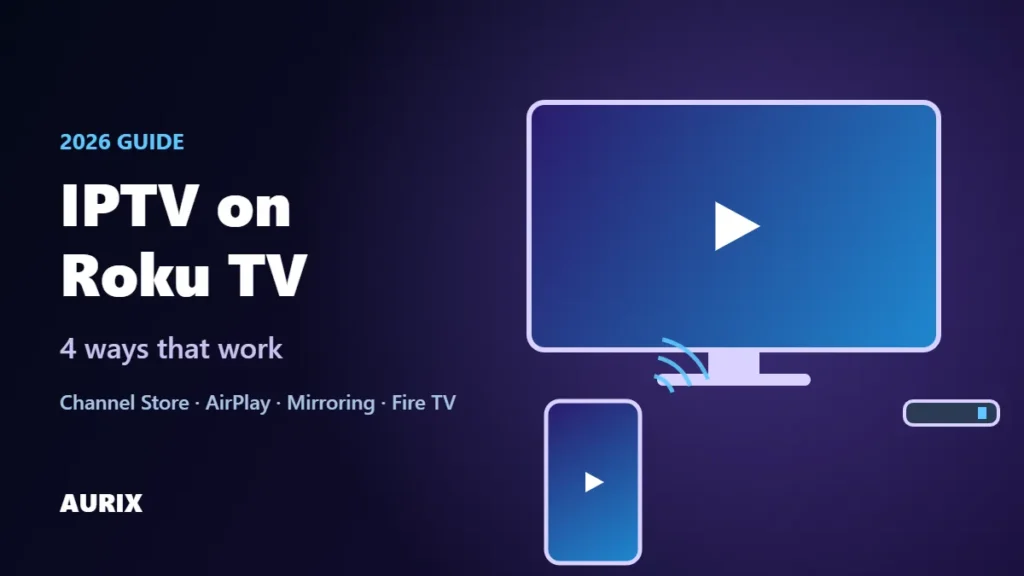
Want to watch IPTV on Roku TV? You can, but Roku works differently from a Fire TV Stick or an Android box. Roku only lets you install apps from its own Channel Store, so there is no one-click way to add any IPTV player you like. The good news: there are four ways that work, from casting your phone to adding a small streaming stick. This guide explains each one honestly, so you can pick the best IPTV for Roku setup for your TV.
- Quick answer: use an IPTV player from the Roku Channel Store if one works for your provider, cast from your iPhone or Android phone, or plug a Fire TV Stick into your Roku TV for the smoothest experience.
- Easiest today: AirPlay from an iPhone (4K Roku models) or screen mirroring from Android.
- Best picture and remote control: a Fire TV Stick or Google TV device in a spare HDMI port.
Why IPTV on Roku is different
Roku is a closed platform. Unlike Fire TV or Android TV, you can’t install apps from outside the Roku Channel Store, and IPTV player apps there come and go. Some are free, some charge a fee, and some only support certain playlist formats. That’s why a method that worked last year may not work today, and why we recommend checking before you pay for anything.
4 ways to watch IPTV on Roku TV
| Method | Ease | Picture | Best for |
|---|---|---|---|
| 1. IPTV player from the Roku Channel Store | Easy, if a compatible app is available | Good | Viewers who want to use the Roku remote |
| 2. AirPlay from iPhone or iPad | Easy | Good on 4K Roku models | iPhone users |
| 3. Screen mirroring from Android or Windows | Easy | Fair, depends on Wi-Fi | Android phone and Windows laptop users |
| 4. Add a Fire TV Stick or Google TV device | Easy, one-time setup | Best | Anyone who watches every day |
1. Use an IPTV player app from the Roku Channel Store
- On your Roku, press Home and open Streaming Store (the Roku Channel Store).
- Search for “IPTV” or “M3U” to see which IPTV player apps for Roku are available right now.
- Read the description and reviews: check the price, the supported login type and whether it has a TV guide.
- Install the app and sign in with your IPTV login details.
Because the IPTV apps for Roku change often, email us your Roku model before you buy an app or a plan. We’ll tell you whether a Roku IPTV player works with Aurix on your TV, or suggest a better option.
2. AirPlay IPTV from your iPhone or iPad
Most 4K Roku devices and Roku TVs support Apple AirPlay. This is the easiest way to get IPTV on Roku TV if you have an iPhone.
- Connect your iPhone and your Roku to the same Wi-Fi network.
- Install IBO Player Pro on your iPhone and sign in with the details we email you.
- Start a channel, tap the AirPlay icon and choose your Roku.
Your phone becomes the remote. Keep it charging during long games, and use 5 GHz Wi-Fi for a steadier picture.
3. Mirror IPTV from an Android phone or Windows PC
Roku supports screen mirroring from most Android phones and from Windows computers. Google Pixel phones are an exception and can’t mirror to Roku.
- On your Roku, make sure screen mirroring is allowed (Settings, then System, then Screen mirroring).
- On Android, open Quick Settings and tap Smart View, Screen Cast or Screen Mirroring (the name depends on your phone). On Windows, press Windows key + K.
- Choose your Roku, then open your IPTV player app and start a channel.
Mirroring sends your whole screen, so quality depends on your Wi-Fi. It’s great for a game night, but for daily viewing the next option is better.
4. Add a Fire TV Stick or Google TV device to your Roku TV
This is the setup we recommend for anyone who watches IPTV on Roku TV every day. A Roku TV is still a normal TV with HDMI ports, so you can plug in a low-cost Fire TV Stick or Google TV device and switch inputs.
- Plug the Fire TV Stick into a free HDMI port on your Roku TV and connect it to Wi-Fi.
- Use your Roku TV remote (or the Home screen) to switch to that HDMI input.
- Install the IPTV player app and sign in. Our guide on how to set up IPTV has the full steps, and you can compare sticks in our best IPTV for Firestick guide.
You get a full IPTV player with a TV guide, a proper remote and the most stable picture, while keeping all your Roku apps on the same TV.
Can you sideload IPTV apps on Roku?
Not in a practical way. Roku has a developer mode for people building their own apps, but it isn’t made for installing IPTV players, apps added this way don’t update, and it’s easy to get wrong. For everyday viewers, the four methods above are simpler and more reliable.
Tips for smooth IPTV on Roku TV
- Use 5 GHz Wi-Fi or Ethernet on the device that plays the stream. You need about 10 to 15 Mbps per HD screen; see our internet speed guide.
- Keep your Roku software updated (Settings, then System, then System update) for the latest AirPlay and mirroring fixes.
- Restart the Roku and your phone if casting stops or the picture freezes.
- Test before you commit: try your setup with a free 24-hour IPTV trial during a busy evening or a big game.
Test IPTV on Roku TV for free
Aurix streams 40,000+ live US channels with a full TV guide and 200,000+ movies and series, in HD and 4K on selected channels, on 1 to 4 screens. Tell us your Roku model and we’ll suggest the best way to watch, then test it free for 24 hours with no card needed. For a quick source on Roku casting, see Roku’s own guide to sharing media from your phone.
IPTV on Roku: frequently asked questions
Can you get IPTV on a Roku TV?
Yes. You can use a compatible IPTV player from the Roku Channel Store, cast from an iPhone with AirPlay, mirror from Android or Windows, or plug a Fire TV Stick into your Roku TV.
What is the best IPTV player for Roku?
IPTV player apps on the Roku Channel Store change often, so the best one depends on what’s available and what your provider supports. Email us your Roku model and we’ll tell you what works with Aurix.
Does AirPlay work on every Roku?
No. AirPlay works on compatible 4K Roku devices and Roku TVs, with an iPhone, iPad or Mac that supports AirPlay 2 on the same Wi-Fi network.
Can I mirror IPTV from a Google Pixel to Roku?
No. Roku screen mirroring works with most Android phones, but not Google Pixel phones. Pixel owners can add a Fire TV Stick or Google TV device to the Roku TV instead.
Is a Fire TV Stick better than Roku for IPTV?
For IPTV, yes. A Fire TV Stick lets you install a full IPTV player with a TV guide, while Roku limits which apps you can use. You can plug a Fire TV Stick into a Roku TV and use both.